 N·E·O
STREAMING
Une réunion, une salle, une vidéo déjà en ligne : quelle que soit la source, votre public la suit avec la voix traduite et les sous-titres.
Voix traduite et sous-titres, au choix du spectateur.
Vous avez un lien et un code de réunion ? Ouvrez le Lecteur N·E·O pour suivre une diffusion en cours.
STREAMING
A meeting, a room, a video already online: whatever the source, your audience follows it with the translated voice and subtitles.
Translated voice and subtitles, at the viewer’s choice.
Do you have a link and a meeting code? Open the N·E·O Player to follow a stream in progress.
STREAMING
Una reunión, una sala, un video ya en línea: sea cual sea la fuente, su público lo sigue con la voz traducida y los subtítulos.
Voz traducida y subtítulos, a elección del espectador.
¿Tiene un enlace y un código de reunión? Abra el Lector N·E·O para seguir una emisión en curso.
Pour les techniciens et les testeurs. Comment relier N·E·O à la sonorisation d’une salle : chaque langue sur son propre canal, depuis un seul ordinateur. Deux installations possibles : avec une carte son USB, ou avec un réseau Dante.
Deux boutons « Copier tout ». Celui du panneau N·E·O (Vue d’ensemble › Accès, ou Liens & QR) copie le client, la conférence, le code de réunion, le lien général, les codes orateur et auditeur, les 2 QR et le lien du guide. Celui de la page de diffusion en salle copie, langue par langue, les liens voix, sous-titres et WebVTT, plus la page spectateur (voir le chapitre 4). L’entrée vidéo RTMPS et l’accès cabine ne sont dans aucun des deux.
| Lien | À quoi il sert | Qui l’utilise |
|---|---|---|
| Page spectateur /stream | Vidéo en direct avec la voix traduite et les sous-titres ; chacun choisit sa langue. | Public à distance |
| Écoute par langue (QR) | La voix dans une langue, sur le téléphone. | Public dans la salle |
| Diffusion en salle /difusion/SALLE | Toutes les langues en même temps, chacune sur son canal audio. | Technicien son |
| Sous-titres WebVTT | Le texte traduit, à superposer sur la vidéo. | Régie vidéo (OBS, vMix) |
| Entrée vidéo RTMPS | Point d’arrivée du flux vidéo de la régie (URL + clé). | Régie vidéo |
| Accès orateur et cabine | Micro de la salle ; cabine hybride (interprète ou IA par langue). | Organisation |
La plus simple : un ordinateur, une carte son USB multicanal, des câbles jack vers la console de la salle.
Câble USB de la carte vers l’ordinateur. Sur Mac, elle apparaît toute seule.
Sorties ligne 1 à 8 de la carte (face arrière) vers les entrées de la console : une sortie = une langue.
Dans Chrome, ouvrez le lien /difusion/SALLE?a=…
« Sortie audio » : UMC1820 (ou le nom de votre carte).
Pour chaque langue, choisissez son « Canal » : le numéro du canal est le numéro de la sortie de la carte.
Les vumètres bougent ; sur la console, chaque entrée part vers son émetteur. « Mode salon » affiche tout en plein écran.
Pour les salles déjà équipées en Dante : pas de carte son, tout passe par le réseau, jusqu’à 64 canaux.
Dante Virtual Soundcard et Dante Controller sur l’ordinateur de salle.
Câble Ethernet de l’ordinateur vers le switch gigabit du réseau Dante.
Lancez Dante Virtual Soundcard (choisissez le nombre de canaux).
Dans Chrome : /difusion/SALLE?a=… ; « Sortie audio » : Dante Virtual Soundcard.
Un « Canal » par langue, comme avec la carte USB.
Envoyez chaque canal de l’ordinateur vers l’entrée voulue de la console Dante. Vérifiez les vumètres.
Pour chaque langue, N·E·O diffuse le même contenu sous quatre formats : la voix, les sous-titres en direct, le fichier WebVTT et le cartouche flottant. Cette page montre à quoi ressemble chacun, à quoi il sert et comment le brancher.
Exemple d’une salle en 5 langues, tel que l’affiche la page de diffusion en salle. Trois groupes de 5 liens : la voix, les sous-titres et le WebVTT, plus la page spectateur. Les vrais liens se copient avec « Copier tout » ; chaque format est expliqué plus bas.
| 1voix EN | wss://neo-interpreting.ibridgepeople.fr/ws/stream/XXXX-XXXX/en?d=… |
| voix ES | wss://neo-interpreting.ibridgepeople.fr/ws/stream/XXXX-XXXX/es?d=… |
| voix DE | wss://neo-interpreting.ibridgepeople.fr/ws/stream/XXXX-XXXX/de?d=… |
| voix PT | wss://neo-interpreting.ibridgepeople.fr/ws/stream/XXXX-XXXX/pt?d=… |
| voix IT | wss://neo-interpreting.ibridgepeople.fr/ws/stream/XXXX-XXXX/it?d=… |
| 2sous-titres EN | wss://neo-interpreting.ibridgepeople.fr/ws/proyeccion/XXXX-XXXX?d=…&lang=en |
| sous-titres ES | wss://neo-interpreting.ibridgepeople.fr/ws/proyeccion/XXXX-XXXX?d=…&lang=es |
| sous-titres DE | wss://neo-interpreting.ibridgepeople.fr/ws/proyeccion/XXXX-XXXX?d=…&lang=de |
| sous-titres PT | wss://neo-interpreting.ibridgepeople.fr/ws/proyeccion/XXXX-XXXX?d=…&lang=pt |
| sous-titres IT | wss://neo-interpreting.ibridgepeople.fr/ws/proyeccion/XXXX-XXXX?d=…&lang=it |
| 3VTT EN | https://neo-interpreting.ibridgepeople.fr/api/difusion/XXXX-XXXX/subs/en.vtt?a=… |
| VTT ES | https://neo-interpreting.ibridgepeople.fr/api/difusion/XXXX-XXXX/subs/es.vtt?a=… |
| VTT DE | https://neo-interpreting.ibridgepeople.fr/api/difusion/XXXX-XXXX/subs/de.vtt?a=… |
| VTT PT | https://neo-interpreting.ibridgepeople.fr/api/difusion/XXXX-XXXX/subs/pt.vtt?a=… |
| VTT IT | https://neo-interpreting.ibridgepeople.fr/api/difusion/XXXX-XXXX/subs/it.vtt?a=… |
| page spectateur | https://neo-interpreting.ibridgepeople.fr/stream/XXXX-XXXX?t=… |
La traduction parlée, langue par langue, en continu.
Le texte traduit, phrase par phrase, affiché en temps réel.
Les mêmes sous-titres, au format standard WebVTT, avec l’heure de chaque phrase.
Les sous-titres dans un cartouche qui flotte au-dessus de n’importe quel écran.

| Format | Ce que c’est | Pour qui |
|---|---|---|
| Voix | Traduction parlée en continu | Public, sono de la salle |
| Sous-titres en direct | Texte traduit affiché en temps réel | Public, grand écran |
| WebVTT | Fichier de sous-titres horodaté | Régie vidéo, archives |
| N·E·O Floating | Cartouche de sous-titres flottant, réglable | Réunions, présentations, vidéo |
Sur la page de diffusion en salle (/difusion/SALLE?a=…), la matrice montre d’un coup d’œil quelle langue sort sur quel canal : une ligne par langue de la salle (l’original et chaque traduction), une colonne par canal de la sortie audio choisie, un point à chaque croisement actif.
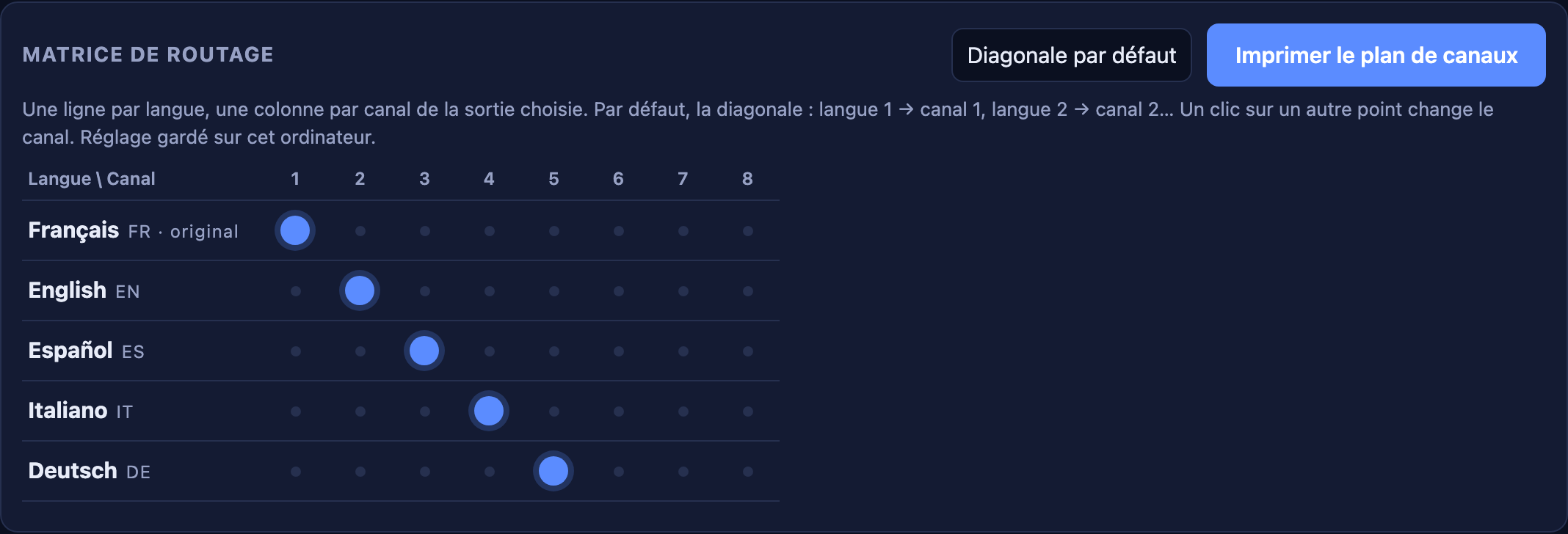
Langue 1 → canal 1, langue 2 → canal 2, et ainsi de suite, dans l’ordre des langues de la salle. Le bouton « Diagonale par défaut » la remet à tout moment.
Un clic sur un autre point de la ligne envoie cette langue sur ce canal. Chaque langue sort sur un seul canal. Le réglage est gardé sur cet ordinateur et revient à la prochaine ouverture. Le menu « Canal » du tableau « Langues → canaux » fait la même chose.
Le bouton donne une feuille simple pour le technicien son : canal 1 = FR, canal 2 = EN…, avec le code de la salle, la date et la sortie utilisée.
Les colonnes rayées dépassent les canaux de la sortie actuelle : une langue placée là sort sur le dernier canal disponible, et la page le signale en orange. Deux langues sur un même canal sont aussi signalées (elles se mélangent).
For technicians and testers. How to connect N·E·O to a venue’s sound system: each language on its own channel, from a single computer. Two setups: with a USB sound card, or with a Dante network.
Two “Copy all” buttons. The one in the N·E·O panel (Overview › Access, or Links & QR) copies the client, the conference, the meeting code, the general link, the speaker and listener codes, the 2 QR codes and the guide link. The one on the in-room broadcast page copies, language by language, the voice, subtitle and WebVTT links, plus the viewer page (see chapter 4). The RTMPS video input and the booth access are in neither.
| Link | What it is for | Who uses it |
|---|---|---|
| Viewer page /stream | Live video with translated voice and subtitles; everyone picks a language. | Remote audience |
| Listen by language (QR) | The voice in one language, on the phone. | Audience in the room |
| In-room broadcast /difusion/ROOM | All languages at once, each on its own audio channel. | Sound technician |
| WebVTT subtitles | Translated text, to overlay on the video. | Video control room (OBS, vMix) |
| RTMPS video input | Where the control room sends the video (URL + key). | Video control room |
| Speaker and booth access | Room microphone; hybrid booth (interpreter or AI per language). | Organisers |
The simplest: one computer, one multichannel USB sound card, jack cables to the venue’s mixing desk.
USB cable from the card to the computer. On a Mac it shows up on its own.
Line outputs 1 to 8 (rear panel) to the desk inputs: one output = one language.
In Chrome, open the /difusion/ROOM?a=… link.
“Audio output”: UMC1820 (or your card’s name).
For each language, pick its “Channel”: the channel number is the card’s output number.
Meters move; on the desk, each input goes to its transmitter. “Venue mode” shows everything full screen.
For venues already equipped with Dante: no sound card, everything goes over the network, up to 64 channels.
Dante Virtual Soundcard and Dante Controller on the room computer.
Ethernet cable from the computer to the Dante network’s gigabit switch.
Launch Dante Virtual Soundcard (choose the number of channels).
In Chrome: /difusion/ROOM?a=…; “Audio output”: Dante Virtual Soundcard.
One “Channel” per language, as with the USB card.
Send each computer channel to the desired input of the Dante desk. Check the meters.
For each language, N·E·O broadcasts the same content in four formats: voice, live subtitles, the WebVTT file and the floating caption box. This page shows what each looks like, what it is for and how to connect it.
Example of a room in 5 languages, as shown on the in-room broadcast page. Three groups of 5 links: voice, subtitles and WebVTT, plus the viewer page. The real links are copied with “Copy all”; each format is explained below.
| 1voice EN | wss://neo-interpreting.ibridgepeople.fr/ws/stream/XXXX-XXXX/en?d=… |
| voice ES | wss://neo-interpreting.ibridgepeople.fr/ws/stream/XXXX-XXXX/es?d=… |
| voice DE | wss://neo-interpreting.ibridgepeople.fr/ws/stream/XXXX-XXXX/de?d=… |
| voice PT | wss://neo-interpreting.ibridgepeople.fr/ws/stream/XXXX-XXXX/pt?d=… |
| voice IT | wss://neo-interpreting.ibridgepeople.fr/ws/stream/XXXX-XXXX/it?d=… |
| 2subtitles EN | wss://neo-interpreting.ibridgepeople.fr/ws/proyeccion/XXXX-XXXX?d=…&lang=en |
| subtitles ES | wss://neo-interpreting.ibridgepeople.fr/ws/proyeccion/XXXX-XXXX?d=…&lang=es |
| subtitles DE | wss://neo-interpreting.ibridgepeople.fr/ws/proyeccion/XXXX-XXXX?d=…&lang=de |
| subtitles PT | wss://neo-interpreting.ibridgepeople.fr/ws/proyeccion/XXXX-XXXX?d=…&lang=pt |
| subtitles IT | wss://neo-interpreting.ibridgepeople.fr/ws/proyeccion/XXXX-XXXX?d=…&lang=it |
| 3VTT EN | https://neo-interpreting.ibridgepeople.fr/api/difusion/XXXX-XXXX/subs/en.vtt?a=… |
| VTT ES | https://neo-interpreting.ibridgepeople.fr/api/difusion/XXXX-XXXX/subs/es.vtt?a=… |
| VTT DE | https://neo-interpreting.ibridgepeople.fr/api/difusion/XXXX-XXXX/subs/de.vtt?a=… |
| VTT PT | https://neo-interpreting.ibridgepeople.fr/api/difusion/XXXX-XXXX/subs/pt.vtt?a=… |
| VTT IT | https://neo-interpreting.ibridgepeople.fr/api/difusion/XXXX-XXXX/subs/it.vtt?a=… |
| viewer page | https://neo-interpreting.ibridgepeople.fr/stream/XXXX-XXXX?t=… |
The spoken translation, language by language, continuously.
The translated text, sentence by sentence, displayed in real time.
The same subtitles, in the standard WebVTT format, with the time of each sentence.
The subtitles in a box that floats above any screen.
| Format | What it is | For whom |
|---|---|---|
| Voice | Continuous spoken translation | Audience, room sound system |
| Live subtitles | Translated text shown in real time | Audience, big screen |
| WebVTT | Time-stamped subtitle file | Video control room, archives |
| N·E·O Floating | Adjustable floating subtitle box | Meetings, presentations, video |
On the in-room broadcast page (/difusion/ROOM?a=…), the matrix shows at a glance which language goes out on which channel: one row per room language (the original and each translation), one column per channel of the selected audio output, a dot at each active crossing.
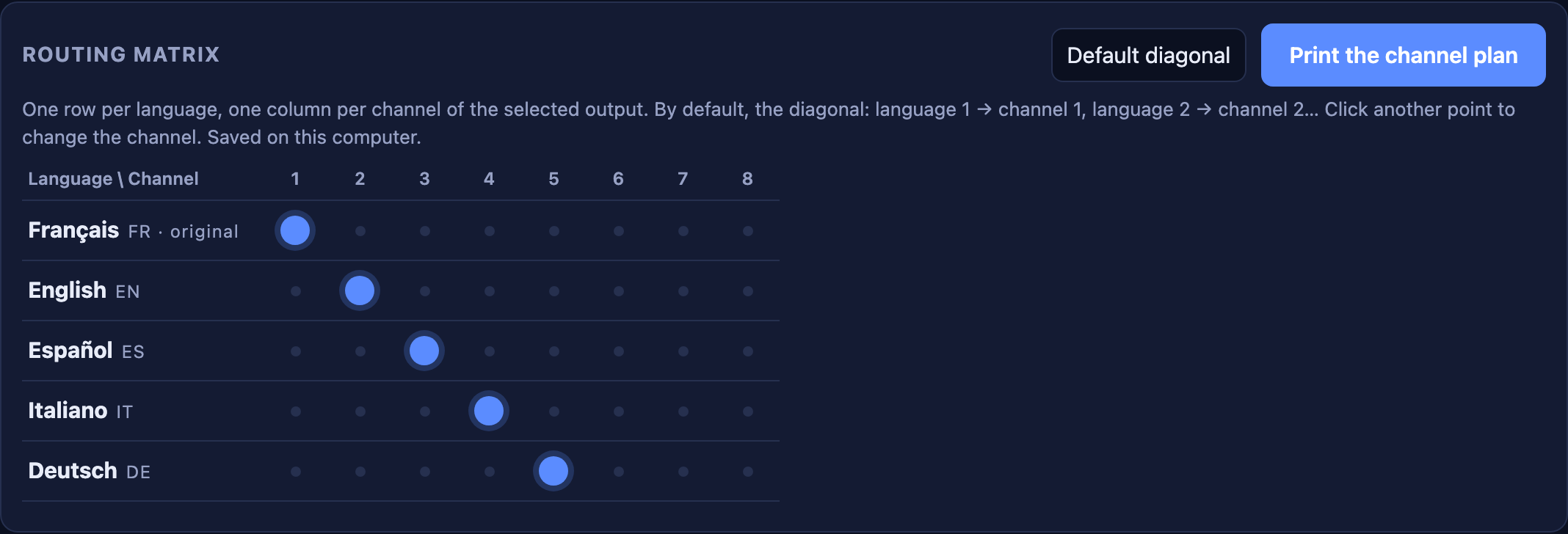
Language 1 → channel 1, language 2 → channel 2, and so on, in the order of the room languages. The “Default diagonal” button restores it at any time.
Click another dot on the row to send that language to that channel. Each language goes out on one channel. The setting is saved on this computer and comes back next time. The “Channel” menu in the “Languages → channels” table does the same.
The button gives a simple sheet for the sound technician: channel 1 = FR, channel 2 = EN…, with the room code, the date and the output in use.
Hatched columns go beyond the channels of the current output: a language placed there goes out on the last available channel, and the page says so in orange. Two languages on the same channel are flagged too (they mix).
Para técnicos y testeadores. Cómo conectar N·E·O al sonido de una sala: cada idioma en su propio canal, desde un solo ordenador. Dos instalaciones posibles: con una tarjeta de sonido USB o con una red Dante.
Dos botones « Copier tout ». El del panel N·E·O (Vue d’ensemble › Accès, o Liens & QR) copia el cliente, la conferencia, el código de reunión, el enlace general, los códigos de orador y de oyente, los 2 QR y el enlace de la guía. El de la página de difusión en sala (« Copiar todo ») copia, idioma por idioma, los enlaces de voz, subtítulos y WebVTT, más la página del espectador (ver el capítulo 4). La entrada de vídeo RTMPS y el acceso a la cabina no están en ninguno de los dos.
| Enlace | Para qué sirve | Quién lo usa |
|---|---|---|
| Página del espectador /stream | Vídeo en directo con la voz traducida y los subtítulos; cada uno elige su idioma. | Público a distancia |
| Escucha por idioma (QR) | La voz en un idioma, en el teléfono. | Público en la sala |
| Difusión en sala /difusion/SALA | Todos los idiomas a la vez, cada uno en su canal de audio. | Técnico de sonido |
| Subtítulos WebVTT | El texto traducido, para superponer al vídeo. | Control de vídeo (OBS, vMix) |
| Entrada de vídeo RTMPS | Adonde el control de vídeo manda la señal (URL + clave). | Control de vídeo |
| Acceso orador y cabina | Micrófono de la sala; cabina híbrida (intérprete o IA por idioma). | Organización |
La más simple: un ordenador, una tarjeta de sonido USB multicanal y cables jack hacia la consola de la sala.
Cable USB de la tarjeta al ordenador. En Mac aparece sola.
Salidas de línea 1 a 8 (panel trasero) hacia las entradas de la consola: una salida = un idioma.
En Chrome, abra el enlace /difusion/SALA?a=…
« Salida de audio »: UMC1820 (o el nombre de su tarjeta).
Para cada idioma, elija su « Canal »: el número de canal es el número de salida de la tarjeta.
Los vúmetros se mueven; en la consola, cada entrada va a su emisor. « Modo sala » lo muestra todo a pantalla completa.
Para salas ya equipadas con Dante: sin tarjeta de sonido, todo pasa por la red, hasta 64 canales.
Dante Virtual Soundcard y Dante Controller en el ordenador de sala.
Cable Ethernet del ordenador al switch gigabit de la red Dante.
Abra Dante Virtual Soundcard (elija el número de canales).
En Chrome: /difusion/SALA?a=…; « Salida de audio »: Dante Virtual Soundcard.
Un « Canal » por idioma, como con la tarjeta USB.
Mande cada canal del ordenador a la entrada deseada de la consola Dante. Verifique los vúmetros.
Para cada idioma, N·E·O difunde el mismo contenido en cuatro formatos: la voz, los subtítulos en directo, el archivo WebVTT y el cartucho flotante. Esta página muestra cómo se ve cada uno, para qué sirve y cómo conectarlo.
Ejemplo de una sala en 5 idiomas, tal como lo muestra la página de difusión en sala. Tres grupos de 5 enlaces: la voz, los subtítulos y el WebVTT, más la página del espectador. Los enlaces reales se copian con « Copiar todo »; cada formato se explica más abajo.
| 1voz EN | wss://neo-interpreting.ibridgepeople.fr/ws/stream/XXXX-XXXX/en?d=… |
| voz ES | wss://neo-interpreting.ibridgepeople.fr/ws/stream/XXXX-XXXX/es?d=… |
| voz DE | wss://neo-interpreting.ibridgepeople.fr/ws/stream/XXXX-XXXX/de?d=… |
| voz PT | wss://neo-interpreting.ibridgepeople.fr/ws/stream/XXXX-XXXX/pt?d=… |
| voz IT | wss://neo-interpreting.ibridgepeople.fr/ws/stream/XXXX-XXXX/it?d=… |
| 2subtítulos EN | wss://neo-interpreting.ibridgepeople.fr/ws/proyeccion/XXXX-XXXX?d=…&lang=en |
| subtítulos ES | wss://neo-interpreting.ibridgepeople.fr/ws/proyeccion/XXXX-XXXX?d=…&lang=es |
| subtítulos DE | wss://neo-interpreting.ibridgepeople.fr/ws/proyeccion/XXXX-XXXX?d=…&lang=de |
| subtítulos PT | wss://neo-interpreting.ibridgepeople.fr/ws/proyeccion/XXXX-XXXX?d=…&lang=pt |
| subtítulos IT | wss://neo-interpreting.ibridgepeople.fr/ws/proyeccion/XXXX-XXXX?d=…&lang=it |
| 3VTT EN | https://neo-interpreting.ibridgepeople.fr/api/difusion/XXXX-XXXX/subs/en.vtt?a=… |
| VTT ES | https://neo-interpreting.ibridgepeople.fr/api/difusion/XXXX-XXXX/subs/es.vtt?a=… |
| VTT DE | https://neo-interpreting.ibridgepeople.fr/api/difusion/XXXX-XXXX/subs/de.vtt?a=… |
| VTT PT | https://neo-interpreting.ibridgepeople.fr/api/difusion/XXXX-XXXX/subs/pt.vtt?a=… |
| VTT IT | https://neo-interpreting.ibridgepeople.fr/api/difusion/XXXX-XXXX/subs/it.vtt?a=… |
| página espectador | https://neo-interpreting.ibridgepeople.fr/stream/XXXX-XXXX?t=… |
La traducción hablada, idioma por idioma, en continuo.
El texto traducido, frase por frase, en tiempo real.
Los mismos subtítulos, en el formato estándar WebVTT, con la hora de cada frase.
Los subtítulos en un cartucho que flota sobre cualquier pantalla.
| Formato | Qué es | Para quién |
|---|---|---|
| Voz | Traducción hablada en continuo | Público, sonido de la sala |
| Subtítulos en directo | Texto traducido en tiempo real | Público, pantalla grande |
| WebVTT | Archivo de subtítulos con horas | Control de vídeo, archivo |
| N·E·O Floating | Cartucho de subtítulos flotante y ajustable | Reuniones, presentaciones, vídeo |
En la página de difusión en sala (/difusion/SALA?a=…), la matriz muestra de un vistazo qué idioma sale por qué canal: una fila por idioma de la sala (el original y cada traducción), una columna por canal de la salida de audio elegida, un punto en cada cruce activo.
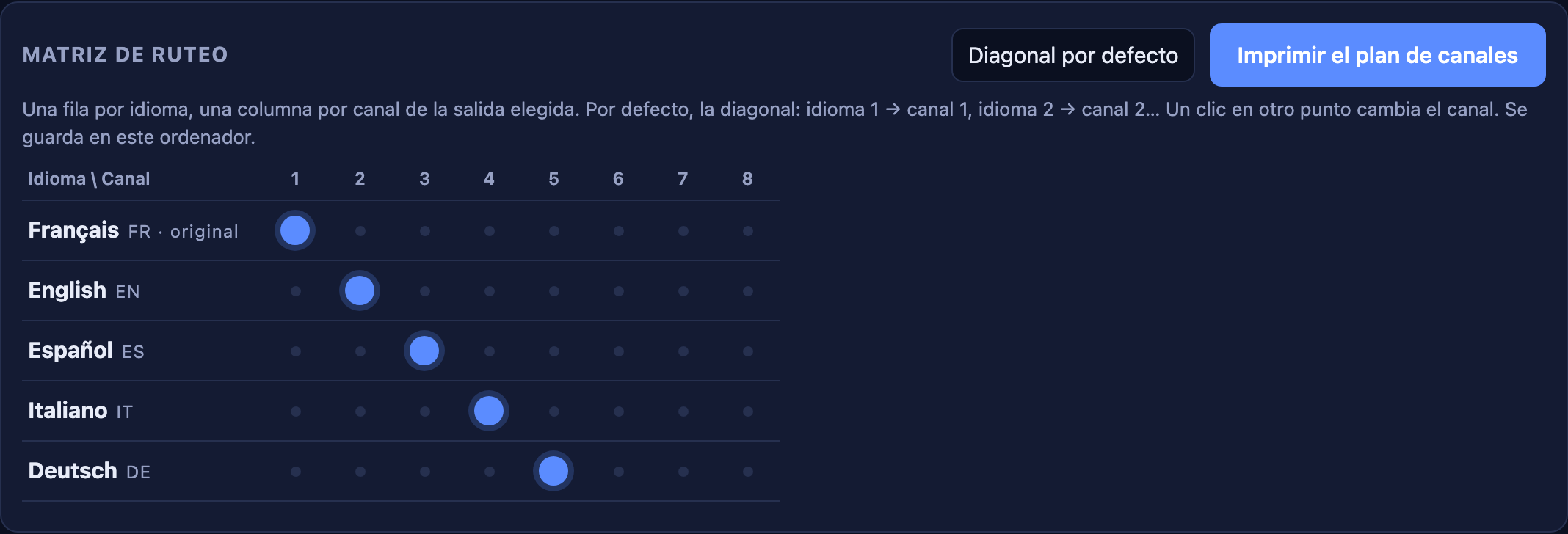
Idioma 1 → canal 1, idioma 2 → canal 2, y así sucesivamente, en el orden de los idiomas de la sala. El botón « Diagonal por defecto » la vuelve a poner en cualquier momento.
Un clic en otro punto de la fila manda ese idioma a ese canal. Cada idioma sale por un solo canal. El ajuste se guarda en este ordenador y vuelve la próxima vez. El menú « Canal » de la tabla « Idiomas → canales » hace lo mismo.
El botón da una hoja simple para el técnico de sonido: canal 1 = FR, canal 2 = EN…, con el código de la sala, la fecha y la salida usada.
Las columnas rayadas pasan de los canales de la salida actual: un idioma puesto ahí sale por el último canal disponible, y la página lo avisa en naranja. Dos idiomas en el mismo canal también se avisan (se mezclan).